Asset Publisher
Importing SHP, GeoJSON and GeoCSV files
Importing Shapefile, GeoJSON and GeoCSV files in cartoDruid
You can now import Esri Shapefile (.shp) and GeoJSON files into your cartoDruid projects. These formats are added to the GeoCSV import functionality that was already available in previous versions.
You can either create new layers directly from these file types or import their data into existing layers.
Creating a new layer
To create a new layer from a file, follow these steps:
First, tap the ¿Add Layer¿ button at the bottom of the TOC (Table of Contents).
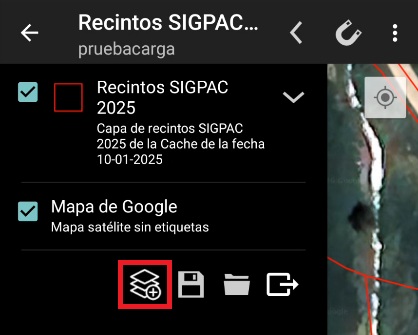
Then select ¿Vectorial Layer¿.
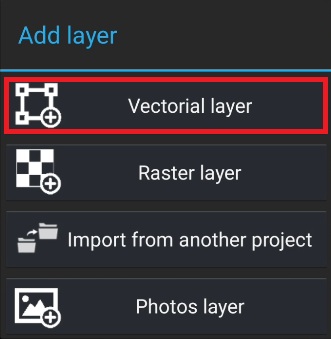
Next, choose the desired file import option.
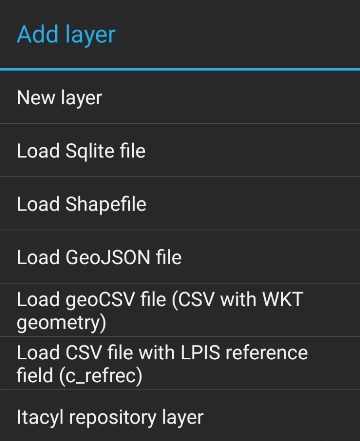
Once the option is selected, the device file explorer will open so you can choose the file to load.
Important considerations
Importing GeoCSV files
If the file you are loading is a GeoCSV, a dialog will appear with two dropdown menus:
-
One to select the file encoding.
-
Another to select the Coordinate Reference System (CRS) used by the geometries in the file.
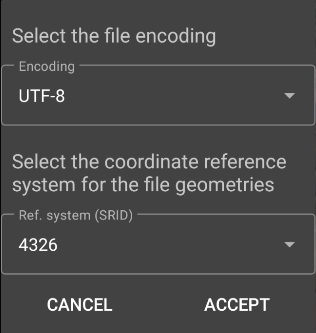
CSV with LPIS reference
If the file is a CSV without a geometry field but contains the c_refrec field (LPIS reference), the project must have a LPIS Parcels layer properly configured.
In this case, once the file is selected, you will only need to choose the file encoding.
The CRS does not need to be specified, as the system will automatically use the CRS of the parcels layer.
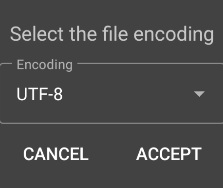
Once the encoding and, if required, the CRS are selected, the Vector Layer creation form will be displayed.
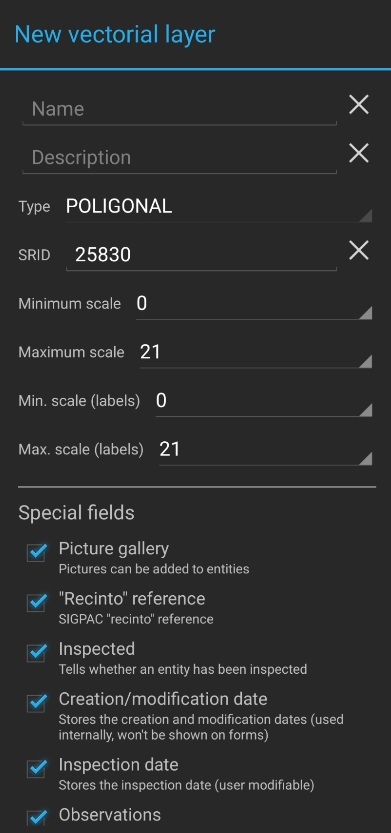
The geometry type will be automatically determined from the geometries contained in the file being imported.
The CRS of the new layer will be set by default to the CRS defined in the imported file, but you can choose a different one if needed.
During the import process, the geometries will be automatically reprojected to the selected CRS.
Layer fields
At the bottom of the form, the list of fields found in the imported file will be displayed. These fields can be removed if necessary.
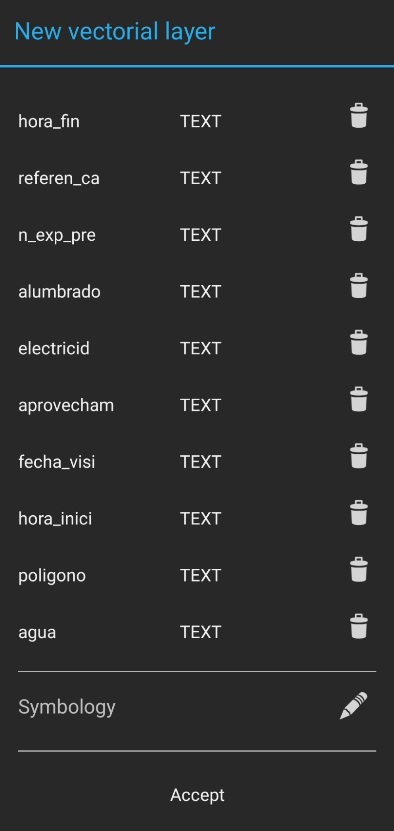
If a CSV file is being loaded, all fields will initially appear as text type. However, you can change the type if needed, as long as the data can be converted to the selected type.
For example, if a numeric type is selected, the field values must be numeric.
Additionally:
-
If a field is set to DATE, the prefix
f_will be added to its name. -
If a field is set to BOOLEAN, the prefix
b_will be added to its name.